
Viewing the Player Configuration
Viewing the configuration
Follow these steps to view a player's configuration:
- In Video Cloud Studio, open the Players module.
- Click the player's name to open its properties.
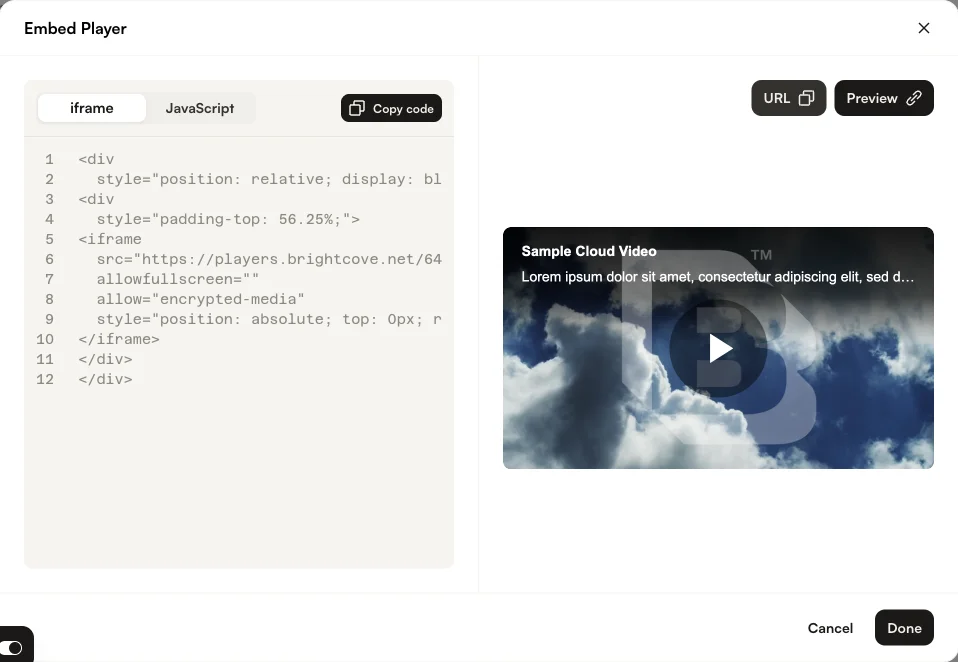
- Click the Embed & Preview button.
- Be sure all changes are published.
-
In the Embed Player dialog, click the URL button to copy the player URL to the clipboard.
- Paste the URL in a new browser/browser tab.
- Check the URL in the browser, it will appear something like this:
https://players.brightcove.net/1507807800001/rf1BTdKk6M_default/index.html - Change the
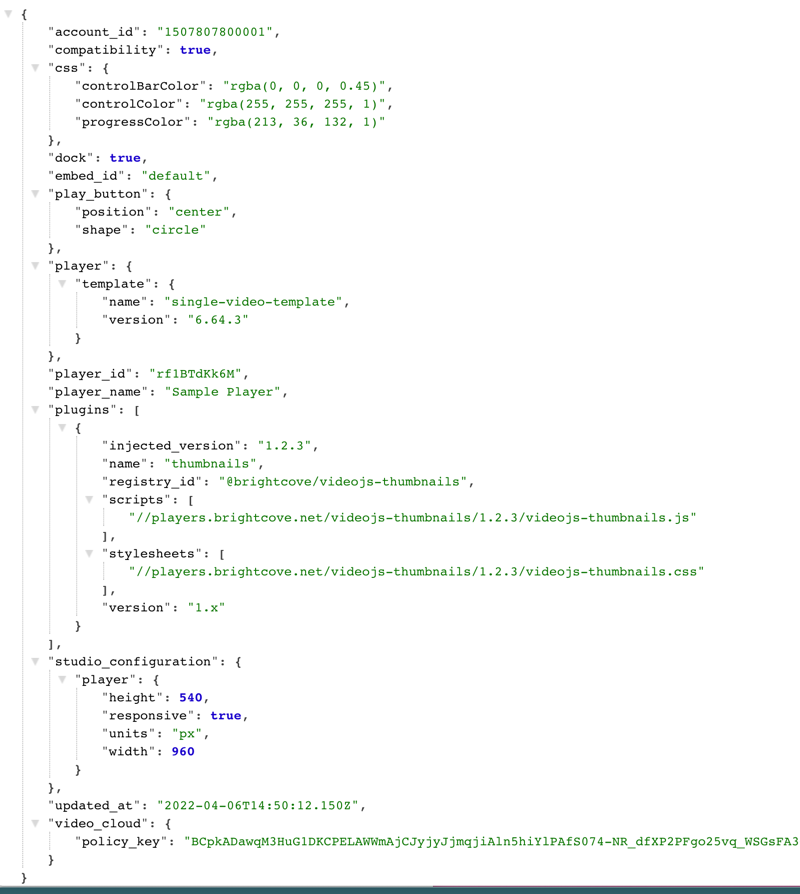
index.htmlin the URL toconfig.json. - The altered URL will display the player's configuration:
Changing the configuration
Although changing the configuration is beyond the scope of this document, a couple comments on that subject are appropriate.
- Studio provides a UI to alter many aspects of the configuration of the player in the Players module.
- For complete control of the player's configuration the Player Management API can be used. Be aware, this is for the developer oriented and uses curl statements extensively. The Step-by-Step: Player Management document provides an introduction to the process.