In this topic, you will learn how to manually set the player version.
Why manually change the version
You may have to rollback to a previous player version as you find a player upgrade is causing an issue. You can rollback to a previous version until testing is completed to find the reason for the issue and it is resolved.
Process
These steps allow you to manually set a player version.
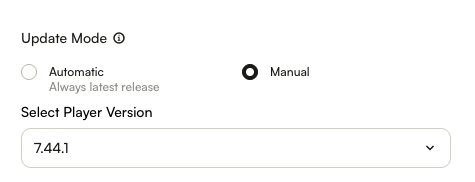
First, you will want to set the player to manually update. This will prevent a player version change to be overridden by a player update. To do this, go to Studio, open the Players module, expand the Information section on the Overview tab, and set the Update Mode to Manual. A Select Player Version dropdown appears, showing the version the player is currently using.
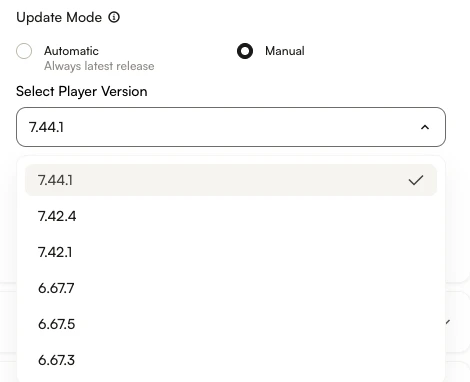
Open the Select Player Version dropdown and choose the version you want the player to use. The version currently in use is marked with a check.
Click Save in the Information section, then click Publish Changes to publish the player.
Don't forget once the issue is corrected to change your player back to be automatically updated.